
Projects / Slotter
Alpha · 1.0.0-alpha.2 · macOS and Windows · GPL-3.0
Slotter
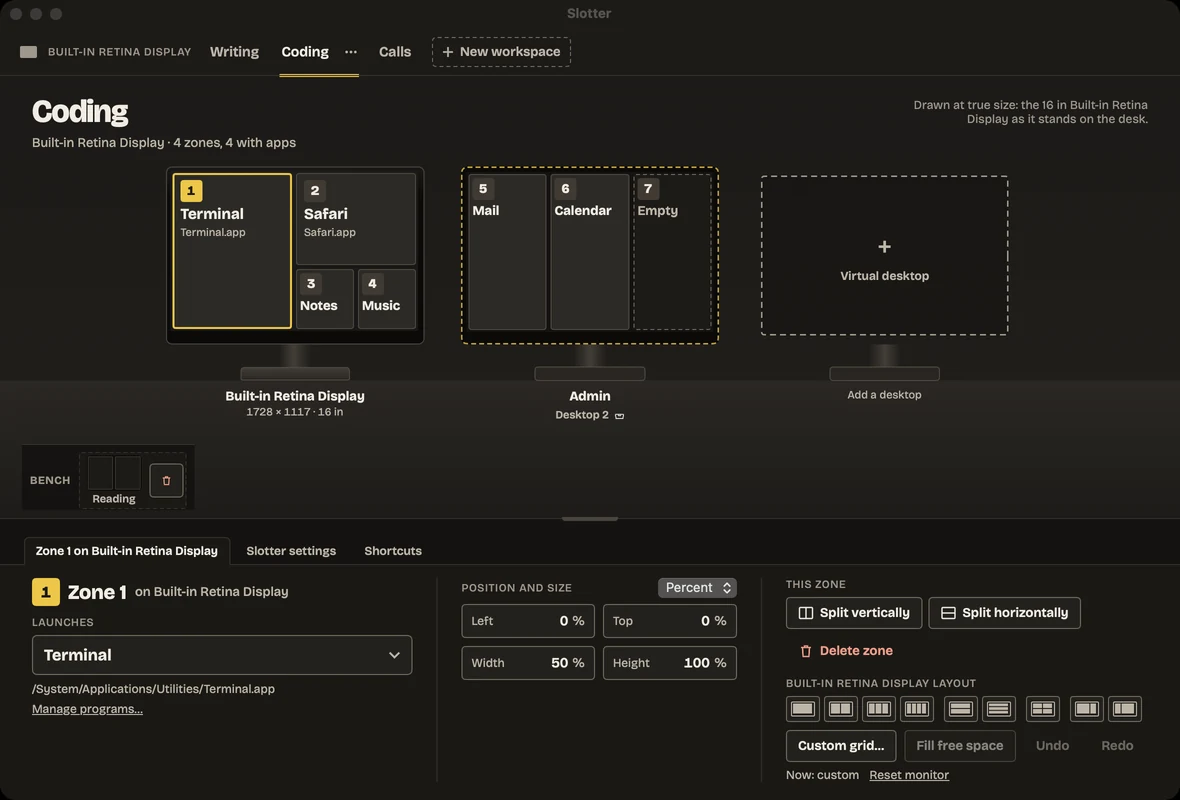
I built Slotter to bring a saved desk back in one click: it opens each app into its own zone across your monitors.
Release alerts on X: follow @kalkmancode to hear when a new version is out.
What it does
- Save named workspaces: each one places your monitors’ zones and can open a chosen app in each zone.
- Launch a workspace to open its apps and place them in their zones; Slotter tells you how many landed.
- Leave a zone without an app and drag a window into it to snap it there.
- Snap the front window to halves, thirds, corners or the next display with keyboard shortcuts.
- Pin a monitor plate to a virtual desktop and give it its own zones, then save that layout as a setup to load on another desktop.
- Slotter updates itself: it checks once a day and asks before it installs anything.
Things to know
- macOS permissionAccessibility is needed to move other apps’ windows. Slotter never reads window contents or keystrokes.
- Windows permissionSlotter asks for administrator permission once so it can move elevated windows, such as Task Manager or an admin terminal.
- Windows signingThe executable is signed by Toby Kalkman using Certum open source code signing. SmartScreen may still warn on a new download.
- Your configurationWorkspaces live in a plain profiles.ini file that you can edit by hand.
- UpdatesSlotter checks for updates once a day and asks before installing one. A check sends no system information, and you can turn it off in Settings.
- Signed and notarisedDeveloper ID, notarised by Apple
FAQs
What should I know about virtual desktops?
Virtual desktop detection uses undocumented operating system data. An OS update may break it; Slotter reports the feature as unavailable and leaves the rest unchanged.